
1. Buka Kertas Kerja Excel Baru (CTRL+N) jika dalam posisi excel terbuka
2. Klik FILE
3. Klik Option
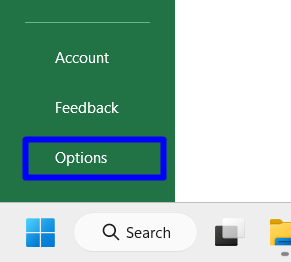
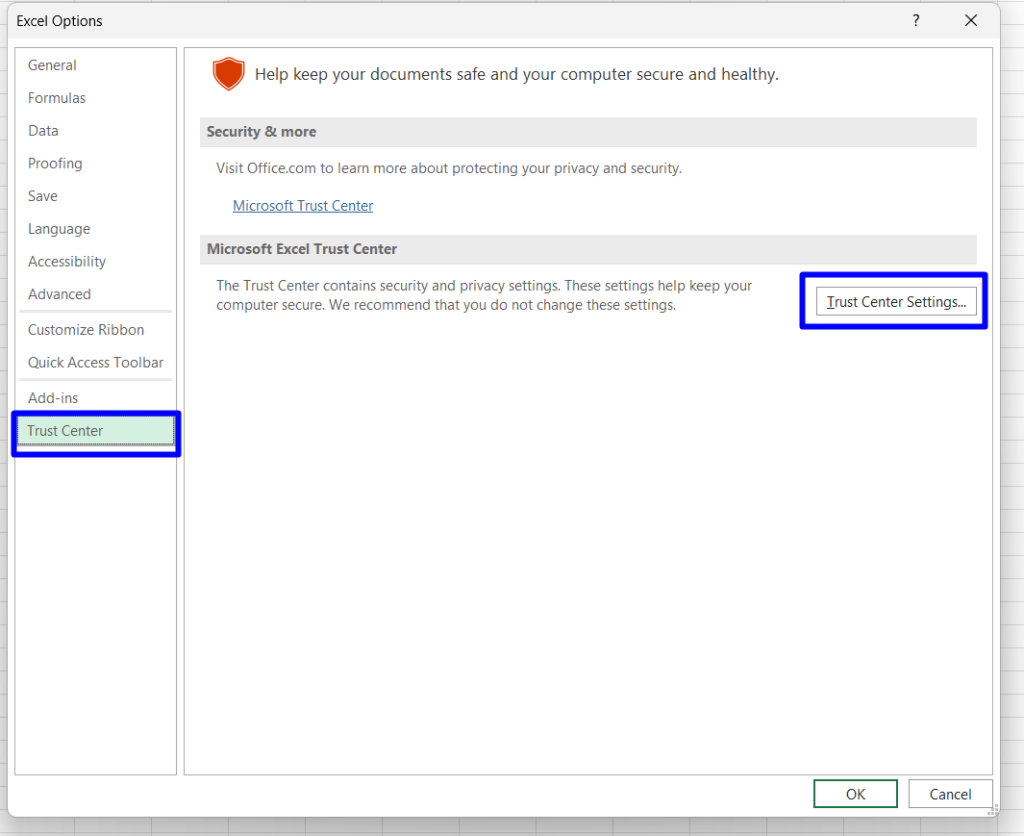
4. Klik Trust Center
5. Klik Trust Center Setting
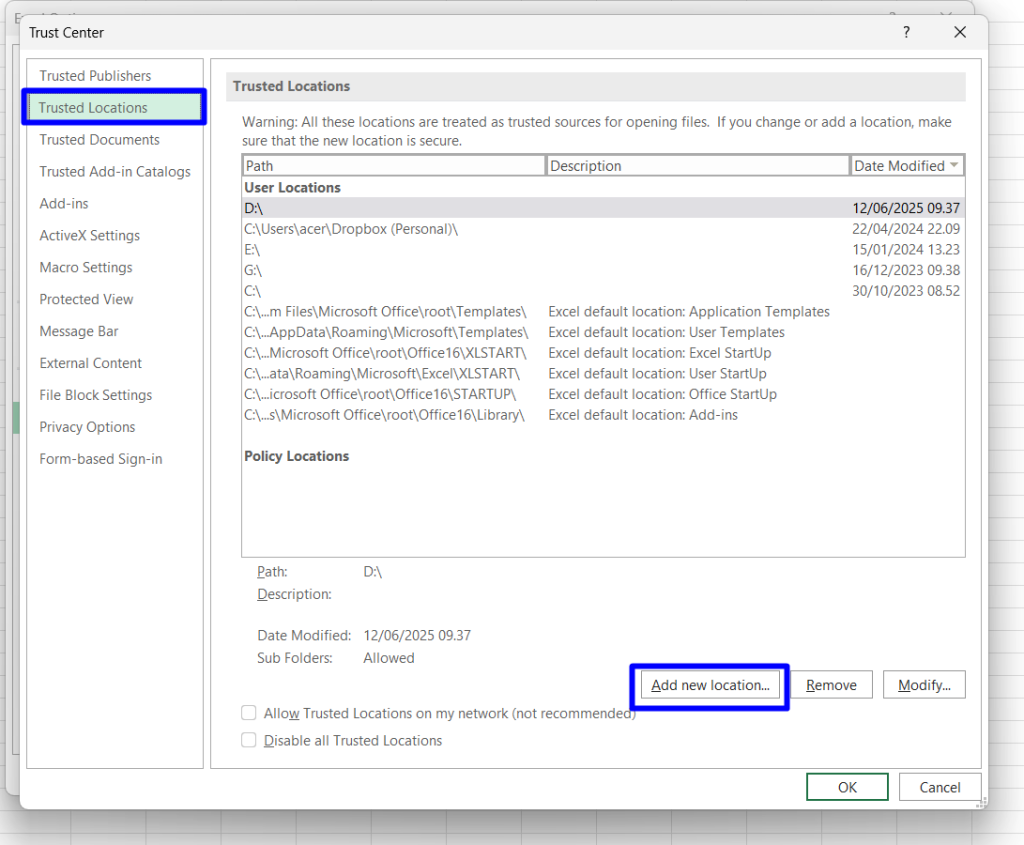
6. Klik Trusted Locations
7. Klik Add new Location
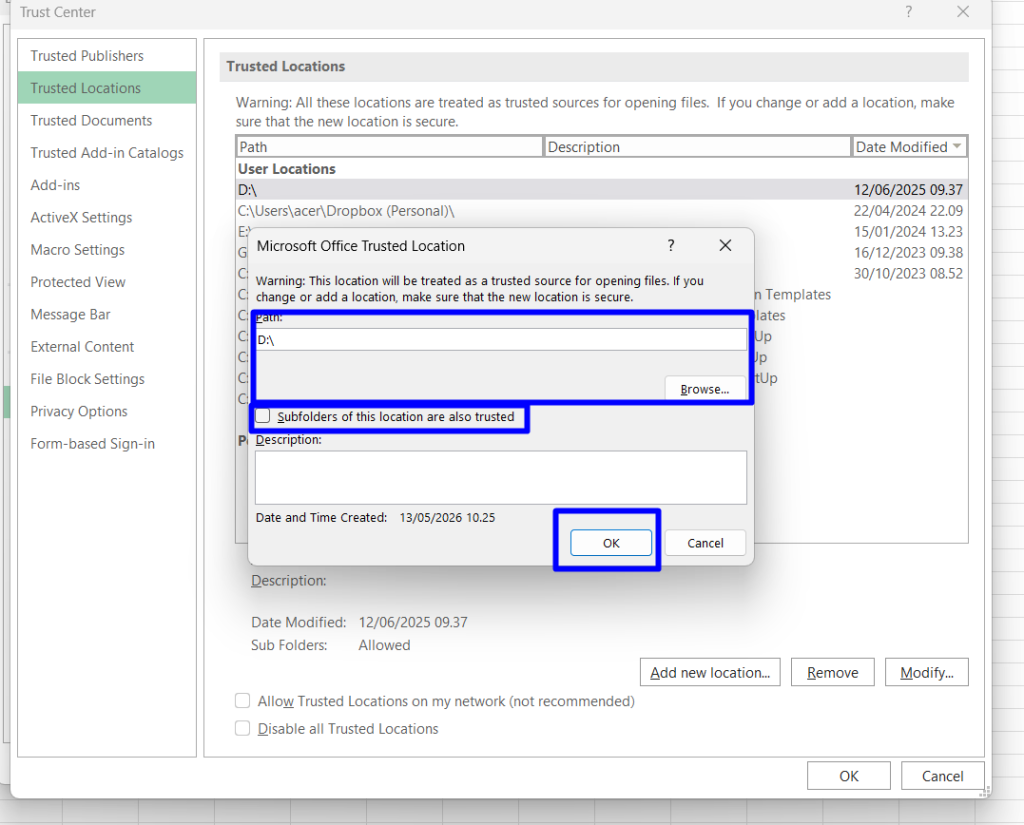
8. Ketik atau Browse Lokasi Penyimpanan/Lokasi File aplikasi yang akan dijadikan tempat terpercaya (Trusted Location)
9. Centang Subfolder agar Folder didalam folder terbaca / mendapat ijin trusted location juga
10. Klik OK
11. Close semua Aplikasi Excel dan Jalankan kembali